

Packs and assets
A pack is a folder for related textures. An asset is a single image inside a pack. Most things you do in Hexcalibur happen in the context of one active asset inside one active pack.
Why packs exist
Section titled “Why packs exist”Pixel art for games tends to come in groups. A Minecraft resource pack has dozens of block textures that share a color palette and a visual language. A 2D platformer’s tileset is one image, but a character spritesheet is many. A UI kit groups related icons.
Packs let you keep all those related assets together so:
- The pack-level palette is shared across every asset, and locking it makes every stroke snap to the same set of colors
- Cloud sync moves the whole pack as one unit
- Engine export can bundle the pack as a Minecraft resource pack, a Tiled tileset, an atlas, etc.
Pack kinds
Section titled “Pack kinds”When you create a pack, you pick a kind. The kind drives a few defaults: the asset type new assets get when you add them, the default canvas size, and the engine options surfaced in the export dialog.
| Kind | Default asset type | Default size |
|---|---|---|
| Block textures (voxel games) | block-texture | 16×16 |
| Sprite set | sprite | 32×32 |
| Tilemap | tile | 32×32 |
| UI kit | ui-element | 24×24 |
| Icon set | ui-element | 24×24 |
| Mixed | block-texture | 16×16 |
You can override the asset type and canvas size for any individual asset - the pack kind is a default, not a constraint.
Canvas size
Section titled “Canvas size”Every asset has its own width and height in pixels. Sizes range from 8 to 512 pixels per axis, set at creation time and changeable later via Edit → Resize Canvas… or by clicking the size badge in the canvas footer.
Most pack kinds accept non-square canvases: a 50×80 portrait sprite, a 320×180 banner, a 78×93 card frame all sit happily side-by-side in the same pack. The one exception is the block texture asset type, which is constrained to a square canvas because each face maps to a cube face - non-square would skew the cube geometry. The size inputs in the New Pack and New Asset modals lock height to width when the active type is block-texture.
Sizes above 256 pixels show a performance warning in the modal. The hard cap is 512 - a 512×512 asset with 10 layers and 8 frames sits around 84 MB in memory, which is comfortable on a modern laptop but starts to feel heavy on multi-asset packs.
Asset types
Section titled “Asset types”Five asset types:
- Block texture. Six faces (top, bottom, north, south, east, west). The 3D preview wraps them onto a cube. By default, all six faces mirror - paint the north face and every face updates. Toggle face independence per asset to paint each face separately.
- Sprite. A single image - characters, items, icons.
- Tile. A single image meant to repeat - terrain, walls. The pixel-grid overlay snaps cleanly to the tile boundary.
- UI element. A single image meant for HUD or UI overlay use. No special behavior vs sprite at the pixel level; the type just helps the export dialog pick sensible defaults.
- Tilemap. A map built FROM the pack’s tiles - a grid of cells
where each cell references a tile. Editing a tile updates every
map that uses it, and maps export as Tiled
.tmxfiles. Created via the map button in the assets panel rather than the regular new-asset flow, and never convertible to or from the other types (an arrangement of tiles isn’t a single image). See Tilemaps.
Every pack and asset has a slug - a URL-safe shortname derived from the name. Renaming a pack or asset doesn’t change the slug automatically; the slug is the stable identifier the URL uses.
If you delete an asset and create a new one with the same name, the new asset gets a fresh slug suffix so its URL doesn’t collide with the deleted one’s history.
Block-texture face independence
Section titled “Block-texture face independence”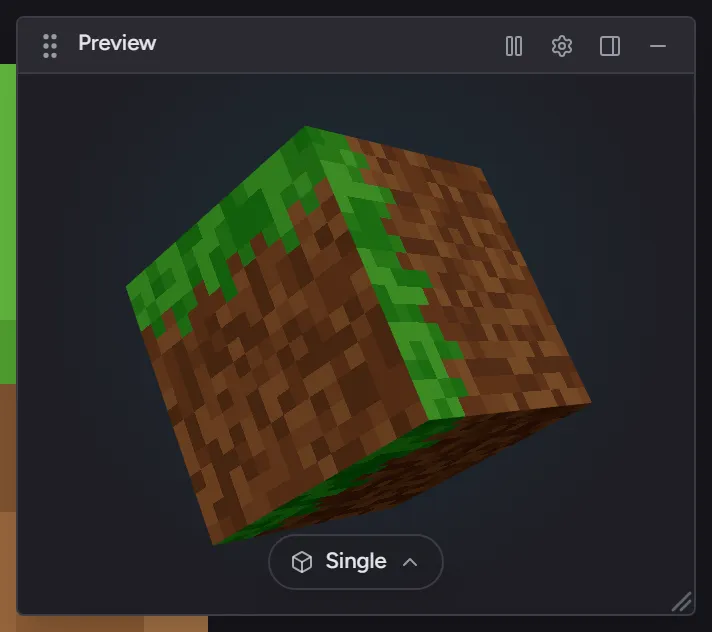
By default, every face of a block-texture asset paints the same image - the mirror mode. This is how you build a uniform texture like cobblestone where every face should look identical.
Toggle face independence for an asset and each face becomes its own paintable image. Pick the face you’re editing from the face selector at the bottom of the editor, or from the Editing: [face] chip that floats at the top of the canvas while face independence is on. The 3D preview shows all six faces together so you can see the result in context, with the face you’re editing marked by a teal letter.
Independence is a per-asset setting - some assets in a pack can mirror, others can be face-independent.
Free-tier caps
Section titled “Free-tier caps”The free tier allows up to 1 pack with up to 8 assets. Pro removes both caps. See Free vs Pro for the full feature comparison.