

Generate terrain
Drawing a full terrain by hand means producing every edge, corner, and inner-corner piece and keeping them all consistent - dozens of tiles for one ground type. Generate Terrain does it from two: draw the terrain fill and one edge treatment, and Hexcalibur composes the complete set, ready to paint with.
A terrain is an autotile material, not a collection you pick from tile by tile: you paint regions with it and the edges and corners resolve themselves. (A collection of distinct tiles you pick from is a tileset instead.)
Generate Terrain is a Pro feature. Painting with a terrain is free, so terrains that arrive in a shared pack keep working on any plan.
Generate is the quick path - one edge, repeated on every side. When you want per-side art or hand-drawn corners instead, draw each piece yourself with Draw a Terrain.
New to autotiling? Try the example
Section titled “New to autotiling? Try the example”If your pack has no tiles yet, the Tile Shelf’s empty state offers Try an example terrain - one click seeds a complete grass-over- soil terrain and a small map, arms it, and drops you straight into painting. Drag across the map and the grass edges resolve themselves. It’s the fastest way to see what a terrain does before you make your own. (It builds a generated terrain, so it’s Pro, the same as Generate.)
Before you start
Section titled “Before you start”Draw two square tiles of the same size in your pack:
- A base tile - the terrain fill (grass, water, lava).
- An edge tile - the border treatment, drawn along the top of its canvas. The top edge faces the open side, and the art connects downward into the terrain - like a sidescroller ground tile with sky at the top.
Generating
Section titled “Generating”Pick Tile → Generate Terrain… (or the generate icon in the Tile Shelf’s header).
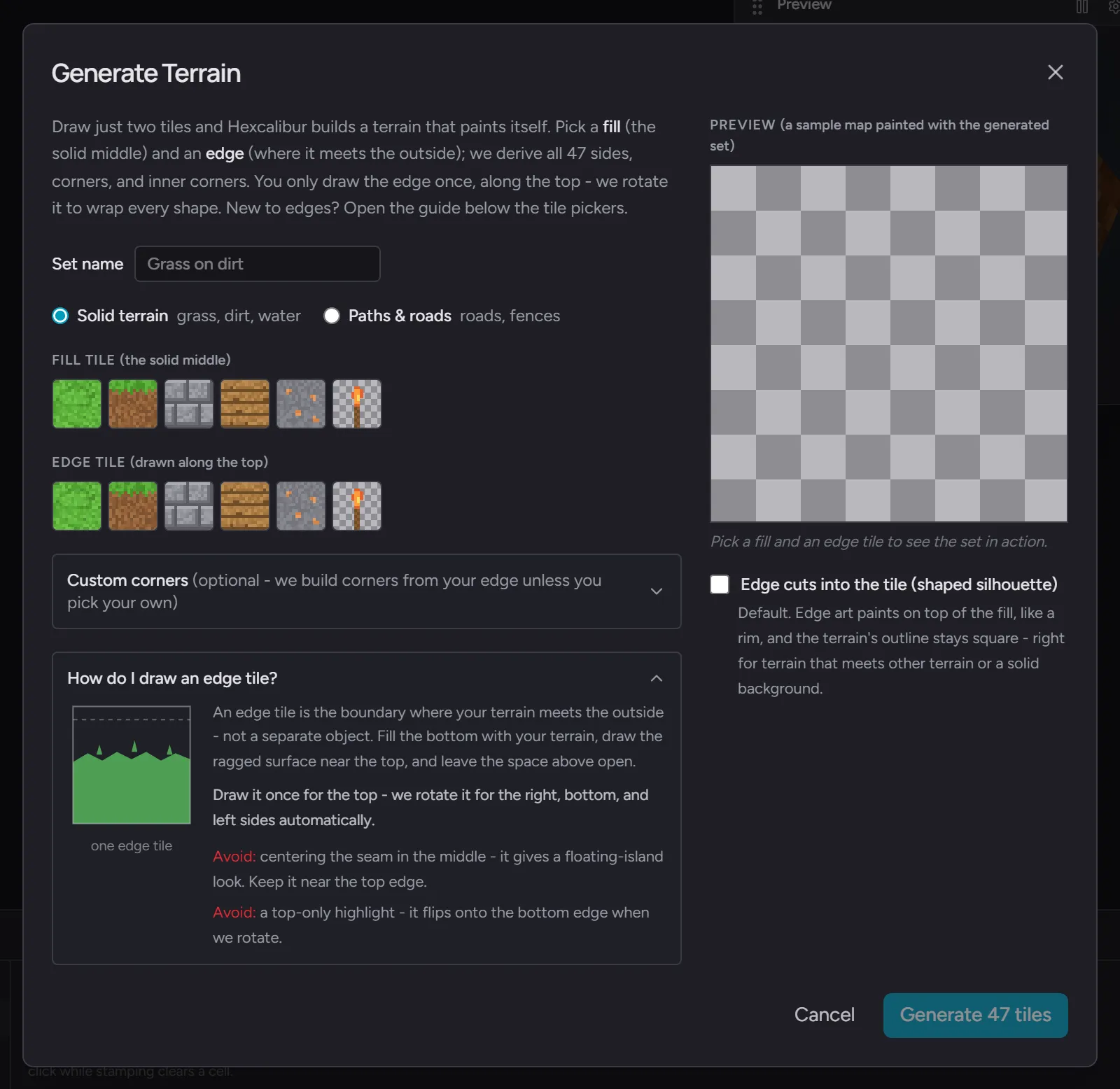
- Set name - names the terrain’s tab in the shelf.
- Terrain (47 tiles) or Paths (16 tiles) - terrain sets cover patches with inner corners (blobs of ground); path sets cover strips and crossings (roads, fences, pipes).
- Base tile and Edge tile - pick from your pack’s tiles.
- Edge cuts into the tile - when on, the border strip becomes exactly your edge art, transparency included: leave the very top of the edge tile unpainted and the terrain gets a see-through, ragged outline. When off, the edge paints on top of the base like a rim, and the terrain’s outline stays square - right for terrain that meets other terrain or a solid background.
- Custom corners - optionally supply your own outer and inner corner tiles. Without them, corners are built from your edge art, which is usually all you need.
A live preview renders a small terrain patch from the candidate set as you pick, so you can judge the result before committing. Click Generate and the whole set lands in the pack as one batch - one undo removes it all.
Painting terrain with Autotile
Section titled “Painting terrain with Autotile”The terrain gets its own tab in the Tile Shelf (marked with a brush icon), drawn as a terrain patch you can pick pieces from, with an “All pieces” strip below. Arm any piece and paint on a tilemap’s tile layer:
- Drag and every cell picks the right edge, corner, or fill piece to match its neighbors - and the neighbors re-fix themselves as the patch grows. No rules to configure, no surprises: the same shape always produces the same tiles.
- Right-click erases, and the surrounding terrain heals its edges.
This is Autotile - and while a set piece is armed on a tile
layer, an Autotile toggle appears in the tool options bar. Turn it
off to place the exact piece you armed with no neighbor matching,
or hold Shift to flip the toggle for a single stroke. Only
terrains autotile; tilesets and single tiles always stamp exactly
what you picked.
On a regular canvas a terrain’s pieces stamp like any other tile - autotiling is what tile layers are for.
Swapping one terrain for another
Section titled “Swapping one terrain for another”Built a map with one terrain and want to retheme it? Right-click any cell painted with the terrain and choose Replace “Grass” set with “Snow” - every piece swaps for the matching piece of the other terrain, edges and corners included, across the whole map in one undoable step. Terrains of the same shape (terrain with terrain, paths with paths) can swap; see Replacing tiles.
Editing a terrain
Section titled “Editing a terrain”The terrain’s header in the shelf carries its actions - regenerate first, then pop-out, rename, delete:
- Regenerate - re-runs the generation from the same base and edge tiles. Edit the source tiles, regenerate, and the whole terrain picks up the new art - every map using it updates live.
- Pop out - opens the terrain in a floating, resizable window that stays on top, with its own zoom.
- Rename - renames the terrain everywhere.
- Delete - removes the terrain’s tiles from the pack (after confirm, with a count of the map cells that use them).
Good to know
Section titled “Good to know”- A terrain’s tiles are normal assets: they export, sync, and travel
in
.hexcpack files like anything else, and the terrain stays grouped on every device. - The assets panel groups a terrain’s tiles under a collapsible header, same as tilesets.
- Tile size follows your source tiles - any square size works.