

3D preview
The 3D preview wraps a block-texture asset onto a 3D shape so you can see how the texture reads when applied to a game-engine voxel - including how edges tile and how lighting catches the geometry.
For sprite, tile, and UI-element assets, the preview hides automatically - the cube wrap doesn’t make visual sense for those.
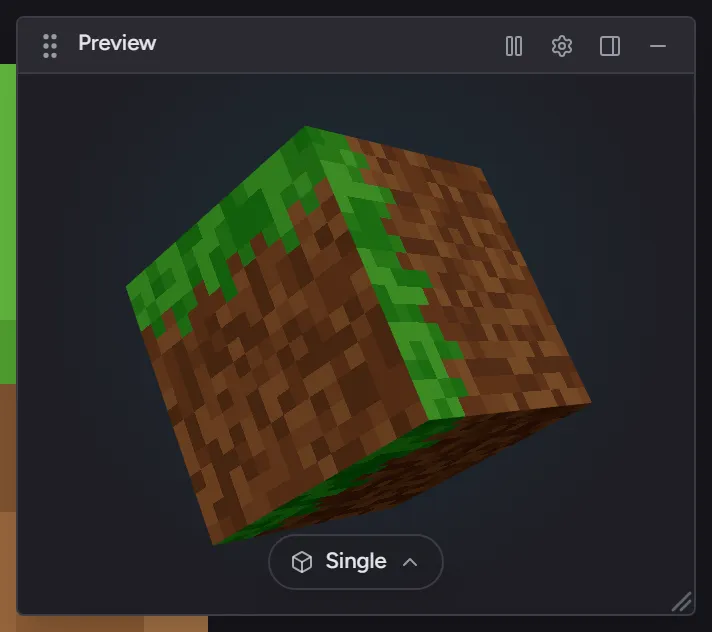
Header controls
Section titled “Header controls”Four buttons sit at the right edge of the preview header, in this order:
- Play / Pause - toggles auto-rotate. The default is rotating so the cube spins on its own; pause to inspect a specific angle with click-drag.
- Settings (gear) - opens a small popover with:
- Rotation Speed - a slider for the auto-rotate cadence
(
0.1×to3×). Disabled while auto-rotate is paused. - Lighting - a checkbox that toggles scene lighting. With lighting on (default), the cube has visible shading - the directional light gives a sense of geometry. With lighting off, the cube renders the raw texture colors with no shading bias, so the two visible faces read identically. Block-texture artists often turn this off when judging color choices, since directional shading can mask a value mismatch.
- Face Labels - a checkbox that overlays a single letter on each cube face so you can tell which face is which while the cube orbits: T (top), B (bottom), N (north), S (south), E (east), W (west). Only the faces pointing toward you are labeled - the letters on the far side stay hidden. Off by default; it’s a learning aid, not always-on chrome. One exception: while the mirror toggle is off, the face you’re currently editing always shows its letter in teal, even with Face Labels unchecked - see below.
- Background - the backdrop behind the cube. Pick one of four presets (Studio, the default brand-tinted gradient; Light; Neutral; Dark) or click the rainbow swatch to choose any custom color. Only the backdrop changes - the face textures are never tinted, so the colors you’re painting stay true. Swap it to judge a texture against a light wall, a dark cave, or a neutral studio gray.
- Rotation Speed - a slider for the auto-rotate cadence
(
- Dock / Float - toggles between floating (default) and docked layouts (see below).
- Hide (minus) - closes the panel entirely. A small “3D Viewer” tab appears against the canvas region’s top-right edge as a re-open affordance.
Floating, docked, or hidden
Section titled “Floating, docked, or hidden”Three layouts:
- Floating (default). A draggable, resizable panel that overlays the canvas region in the top-right. Drag the header to move it; drag the bottom-right corner to resize. The position and size persist across sessions.
- Docked. Splits the canvas region 50/50 - canvas on the left, preview on the right. Useful for mid-paint reference workflows.
- Hidden. The reopen tab on the canvas region’s right edge brings the panel back.
Shape modes
Section titled “Shape modes”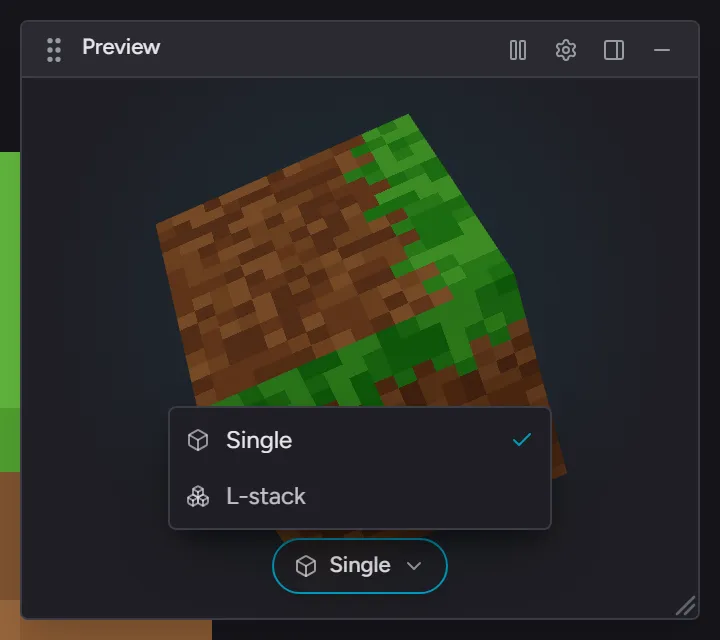
The bottom-center pill on the preview shows the current shape. Click it to open the shape menu:
- Single. One rotating cube. Free.
- L-stack. A six-cube stair arrangement. Pro - on the free tier the menu row carries a PRO badge, and picking it opens the upgrade dialog.
L-stack shows your texture in a context with edge tiling, corner geometry, and self-occlusion - closer to how the texture will actually read in a voxel scene than a single cube can.
Face selector + mirror toggle
Section titled “Face selector + mirror toggle”For block-texture assets, the bar at the bottom of the canvas region shows:
- A face selector with six entries (top, bottom, north, south, east, west). Click to switch which face the editor canvas is painting on.
- A mirror toggle that flips the asset between mirror mode (one shared layer stack across all faces) and face-independent mode (one stack per face).
While mirror is off, an Editing: [face] chip also floats at the top of the canvas so you always know which face you’re painting without looking down at the bar. Click the chip to switch faces or turn mirror back on from right where you’re working.
The 3D preview always renders all six faces together so you can see how the asset reads as a complete cube, regardless of which face is currently active in the editor. While mirror is off, the face you’re editing shows its letter in teal on the cube - even with Face Labels turned off - so you can match the canvas to the preview at a glance.
Performance
Section titled “Performance”The preview shares one WebGL context with the editor. Switching between docked and floating, or between assets, never tears the context down - so there’s no flicker or initialization pause.
For numbers, see Performance.
Related
Section titled “Related”- Packs and assets - for the block-texture face-independence model
- Performance