

Selection tools
Selection in Hexcalibur is a region you mark on the canvas. Three tools commit a selection; paint tools below clip their strokes to it. The selection lasts for the current session (reload clears it) and is shared by every paint operation on the active asset.
The three tools
Section titled “The three tools”| Tool | Shortcut | Gesture | Result |
|---|---|---|---|
| Marquee | M | Click + drag a rectangle | Axis-aligned rectangular selection |
| Lasso | L | Freehand drag, release to close | Scanline-rasterized polygon selection |
| Magic wand | W | Click a pixel | Color-match selection from the seed |
They live in their own cluster at the top of the tool rail, above the paint tools.
Magic wand options
Section titled “Magic wand options”Two knobs in the tool options bar when the magic wand is active:
- Tolerance (0-255, default 0). Max per-channel delta from the seed pixel that still counts as “matching.” 0 = exact match, the pixel-art default. Higher values are useful when flood-selecting around anti-aliased imports.
- Contiguous (default on). On = 4-connected BFS from the seed (the “fill within reach” variant). Off = scan the whole layer (“select same color globally”). The wand reads from the active layer only, not the merged composite.
Clicking on transparent pixels
Section titled “Clicking on transparent pixels”A no-modifier wand click on a fully-transparent pixel (alpha 0) deselects instead of flooding the transparent background. On a typical pixel-art canvas with paint, the connected transparent region is the whole canvas minus the paint - almost never what a user wants to select. The deselect-on-transparent behavior matches the rect / lasso click-outside-deselects convention.
To explicitly select transparent regions:
- Hold
Shiftwhile wand-clicking on a transparent pixel to add the transparent flood to an existing selection. - Use rect-marquee or lasso to draw the region manually.
Modifier combines
Section titled “Modifier combines”The mode locks at pointerdown; releasing the modifier mid-drag doesn’t flip the combine.
| Modifier at pointerdown | Mode |
|---|---|
| (none) | Replace |
Shift | Add |
Alt | Subtract |
Shift + Alt | Intersect |
Applies to all three tools - a Shift-drag with the rect
marquee, a Shift-click with the wand, or a Shift-traced
lasso all do the same combine.
Global commands
Section titled “Global commands”| Key | Action |
|---|---|
Cmd/Ctrl + A | Select all |
Cmd/Ctrl + D | Deselect |
Cmd/Ctrl + Shift + I | Invert the selection |
Esc | Deselect (when no float is active) |
Ctrl + I is taken by the File menu’s Import as new asset,
so invert uses Ctrl + Shift + I (the Photoshop + Aseprite
convention).
Transform handles (drag-to-resize)
Section titled “Transform handles (drag-to-resize)”While a selection is active and the rect-marquee or lasso tool is selected, eight small white squares appear on the marquee’s bounding box - four corners and four edge midpoints. They’re Hexcalibur’s transform widget.
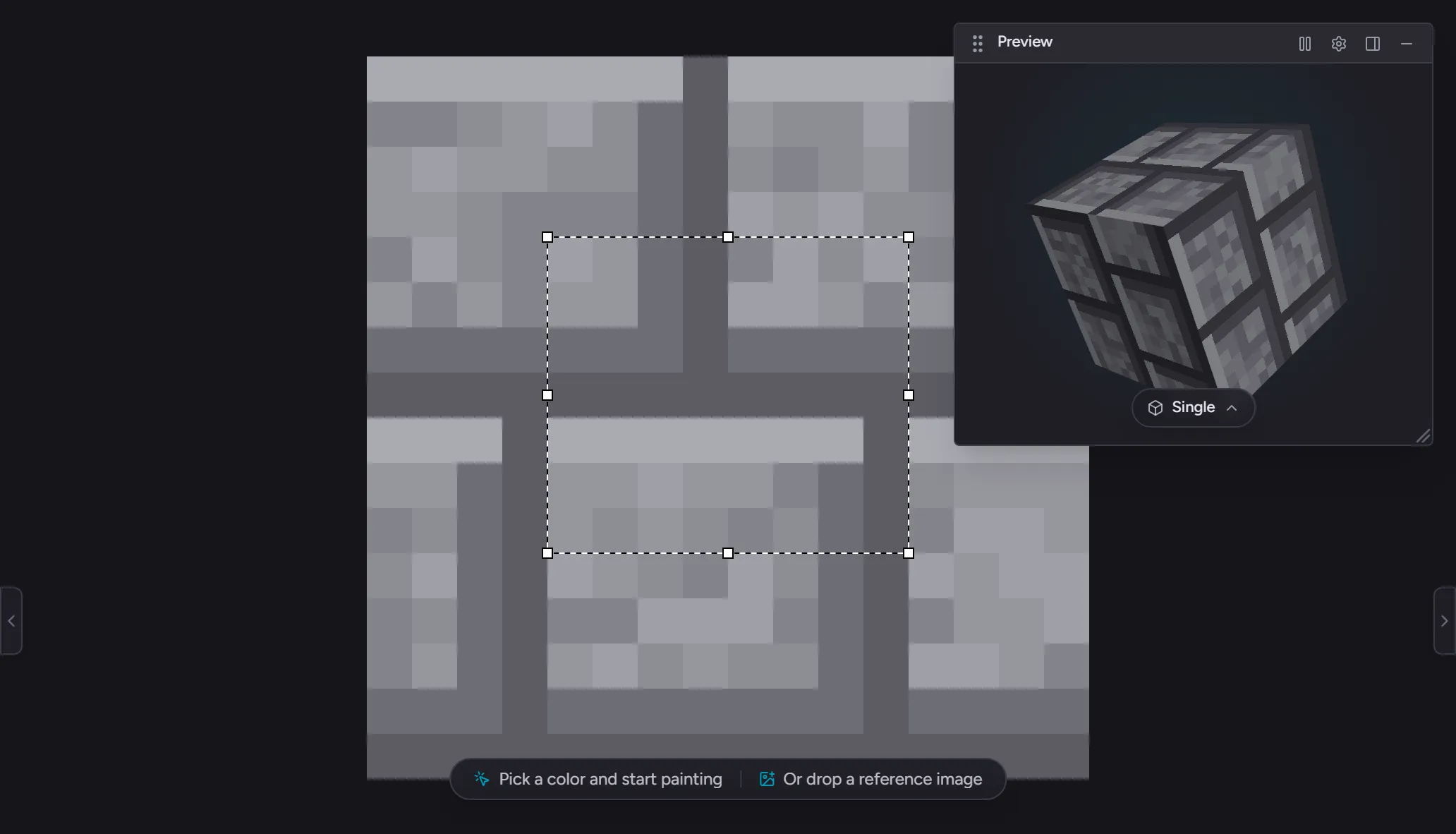
| Handle | Cursor | What drags |
|---|---|---|
| Top-left, bottom-right | Diagonal ↖↘ | Width + height (corner) |
| Top-right, bottom-left | Diagonal ↗↙ | Width + height (corner) |
| Top, bottom | Vertical ↕ | Height only |
| Left, right | Horizontal ↔ | Width only |
Click and drag a handle to scale the lifted pixels at the new bounds. Nearest-neighbor scaling keeps hard pixel edges. For a lasso selection, the irregular shape is preserved under scale
- not just the bounding rect.
| Action | Effect |
|---|---|
| Click + drag a handle | Lift pixels, scale to current bounds |
| Drag past the opposite edge | Bounds invert and normalize automatically |
Enter | Commit - bake the scaled pixels into the layer |
Esc | Cancel - revert to the pre-resize state |
| Release outside canvas bounds | Off-canvas pixels are clipped on commit |
Handles render for all three selection tools - including the magic wand. After wand-selecting a region, you can click and drag a handle to scale the wand selection’s pixels just like a rect or lasso selection. Modifier clicks (Shift / Alt / Shift+Alt) with the wand still always sample-and-flood, so adding / subtracting more color regions to a wand selection works as expected without auto-lifting.
Switching tools, switching assets, or switching frames commits any in-progress transform automatically - the gesture’s source frame is locked at lift time. Locked layers can’t be transformed.
Floating selection (drag-to-move)
Section titled “Floating selection (drag-to-move)”Click inside an active marquee (NOT on a handle, NO modifier held) with any selection tool and the selected pixels lift into a float. Drag to reposition; the marching ants follow the lifted pixels as you move them. The cursor changes to the OS move glyph while hovering inside the marquee to telegraph the available gesture. Wand clicks inside the marquee with a modifier (Shift / Alt / Shift+Alt) still sample-and-flood instead of lifting - that’s how the user refines a wand selection.
| Action | Effect |
|---|---|
| Drag inside the marquee with M or L | Lift the pixels into a float, or continue dragging an existing float |
| Drag | Reposition the float |
Enter | Commit - bake the float at its new position |
Esc | Cancel - revert to the original position |
| Click outside the marquee | Commit, then start a new selection gesture |
Switching tools, switching assets, or switching frames also commits any active float automatically. Magic wand also commits before sampling.
If the user lifted but didn’t drag (offset stays at 0, 0), the commit is a no-op - no undo entry is pushed because the layer state hasn’t changed.
Marquee clipboard
Section titled “Marquee clipboard”A clipboard for the current session, separate from the layer clipboard. Reload clears it.
It follows you between assets. Copy on one asset, open another, paste. The copy also survives switching packs, and you can paste it as many times as you like. The two assets have to be the same canvas size - a 16×16 copy can’t paste into a 32×32 asset, and a 50×80 copy can’t paste into a 50×50 one. Hexcalibur tells you when the sizes don’t line up rather than doing nothing.
Copy takes pixels from the active layer only, not the merged image. To carry a whole layer somewhere - every frame of it, with its opacity and blend mode - use Copy layer instead. To start a new asset from a copy, use Paste as new asset in the Edit menu.
| Key | Action |
|---|---|
Cmd/Ctrl + C | Copy the selection’s pixels (layer unchanged) |
Cmd/Ctrl + X | Cut - copy and clear pixels on the active layer |
Cmd/Ctrl + V | Paste as a float to reposition before commit (see below for position) |
Delete / Backspace | Clear the pixels under the selection (mask itself stays) |
Locked layers reject cut, paste, and delete. Copy still works on locked layers (no layer mutation involved).
Paste behavior
Section titled “Paste behavior”Paste leaves the source pixels intact and adds a new float on top - your original copy stays where it was, the pasted copy is a separate floating selection you can move. Drag the float, Enter to commit, Esc to cancel (the cancel discards the paste; the original is untouched either way).
By default the paste lands at the clipboard’s original position. So a copy-then-immediately-paste would put the new float right on top of identical pixels - visually invisible. To prevent that, Hexcalibur auto-offsets the paste by 2 pixels when you paste right back onto an unchanged copy of the source (the copy-then-paste-on-same-layer case). Cut-then- paste, paste-on-a-different-layer, or paste after any layer change lands at the clipboard’s original position (no offset needed - the float is already visible against the new content).
Cmd/Ctrl + X (cut) is the path for “lift the pixels out of
the layer + move them elsewhere”: cut clears the source, paste
re-deposits at the clipboard’s original position (or wherever
you drag the float before committing).
Selection-aware paint tools
Section titled “Selection-aware paint tools”When a selection is active, every paint tool clips its writes to the mask:
- Brush, eraser, line, rectangle, circle, color replace: only pixels inside the mask are written.
- Fill: the flood is bounded by the mask edge. A click outside the marquee is a no-op (the seed must be inside).
- Eyedropper: ignores the selection entirely; samples any pixel regardless.
Clipping is applied at the pixel level, so even a brush stamp that partially overlaps the marquee edge only paints the pixels that fall inside the selection.
Related
Section titled “Related”- Tool rail
- Tool options bar
- Keyboard shortcuts
- Layers panel - selection clips per-layer; the active layer is the paint target