

Tiled mode
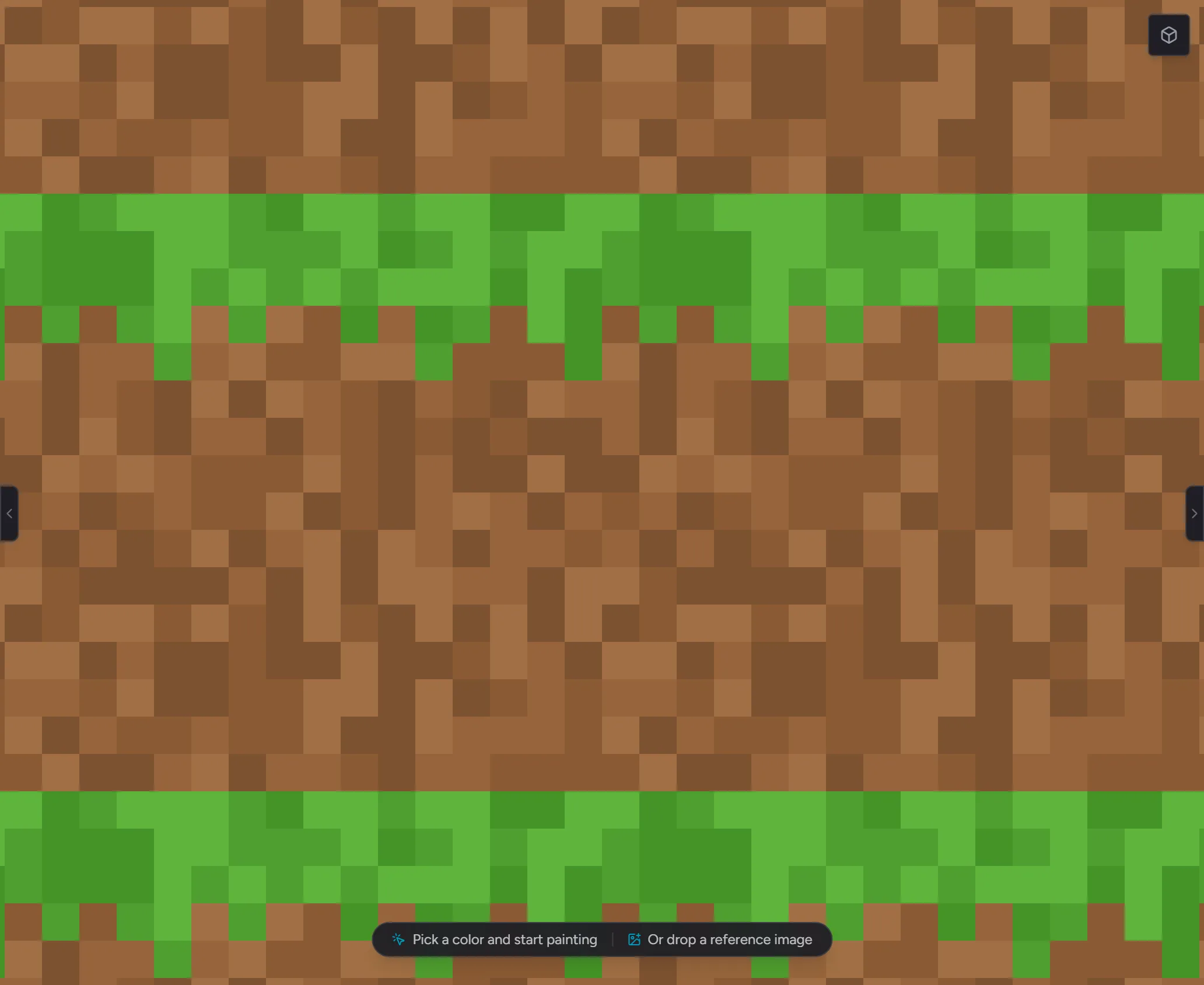
Tiled mode shows your canvas surrounded by copies of itself - a 3x3 repeat of the artwork. It is the fastest way to check whether a tile connects cleanly to its own neighbors: any seam between repeats jumps out immediately, exactly where two copies of your texture meet.
Turn it on from View → Tiled Mode, or press Shift + ' to toggle
it. Three repeat directions are available:
| Mode | What you see | Use it for |
|---|---|---|
| Repeat X | A row of three copies | Tiles that repeat sideways (floors, horizon strips) |
| Repeat Y | A column of three copies | Tiles that repeat vertically (walls, waterfalls) |
| Repeat Both | The full 3x3 neighborhood | Tiles that repeat in every direction (terrain, backgrounds) |
The center copy is your real canvas; the surrounding copies update live as you paint, including mid-stroke.
Painting across the edges
Section titled “Painting across the edges”While tiled mode is on, brush strokes wrap around the canvas. Drag past the right edge and the stroke continues from the left edge - the same way the tile itself will behave in a game. Wrapping follows the active repeat direction: in Repeat X, strokes wrap left-right but not top-bottom.
Wrapping applies to the brush, eraser, line, and shape tools. The fill tool stays inside the canvas bounds. The brush preview near an edge shows the wrapped half of the footprint, so you always see where paint will land before you click.
Zoom and pan work as usual - the repeats scale and move with the canvas.
Checking your work
Section titled “Checking your work”A tile reads as seamless when you cannot tell where one repeat ends and the next begins. Look along the boundaries between copies: a hard line, a color step, or a shape that cuts off abruptly means the opposing edges do not match yet. Paint across the boundary (the stroke wraps) until the transition disappears.
If you would rather have Hexcalibur fix the seams for you, see Make seamless.