

Make seamless
Make Seamless converts the open texture into one that tiles without visible seams. It is built for pixel art: the conversion only moves and copies pixels that are already in your artwork - nothing is blurred, no in-between colors are invented, and your palette stays exactly as it was.
Make Seamless is a Pro feature. The manual route stays free: tiled mode with wrap-around painting lets you fix seams by hand on any plan.
Running it
Section titled “Running it”Open Tile → Make Seamless… (in block-texture packs, which have no Tile menu, it sits at the bottom of the Edit menu instead). The dialog shows a before / after preview, each rendered as a 3x3 repeat so you judge the result the way it will actually be used - repeating.
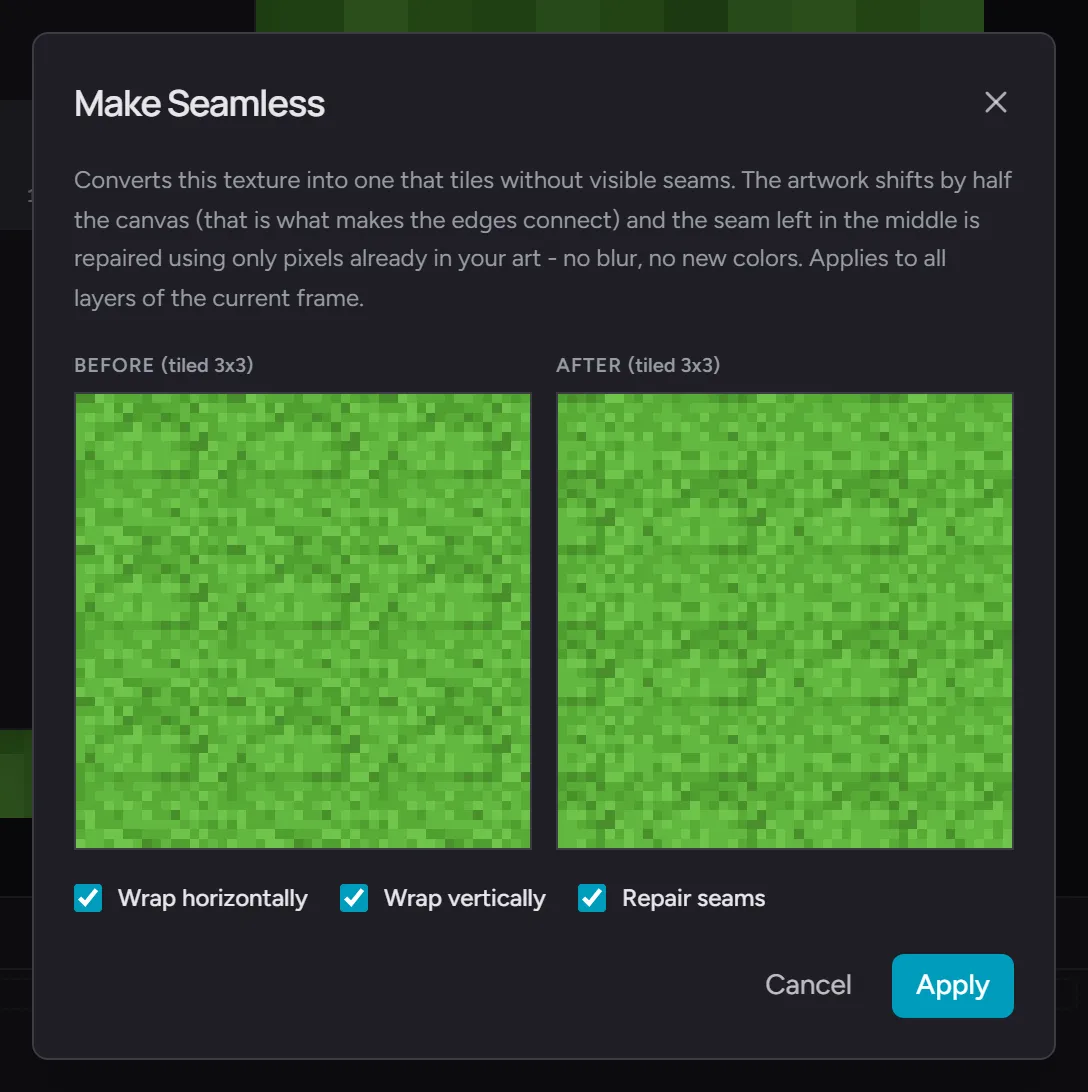
- Wrap horizontally / Wrap vertically - which directions the result should tile in. Both are on by default; turn one off for a strip that only repeats along one axis.
- Repair seams - on by default. The conversion shifts your artwork by half the canvas (that shift is what makes the outer edges connect perfectly) and leaves a seam through the middle; the repair then redraws a narrow band along that seam using pixels copied from your own artwork, routed through the places where the change is least visible. Turn it off to get the raw shifted version and patch the middle yourself.
Click Apply and the editor switches into tiled mode so you can see the result repeating immediately. One undo restores every layer.
What to expect
Section titled “What to expect”- The artwork visibly shifts by half the canvas. That is normal - it is what makes the edges connect. For a texture that is going to repeat, the starting position inside the tile does not matter.
- The conversion applies to all layers of the current frame together, so multi-layer textures stay aligned.
- Strong one-directional features that touch a canvas edge (a shadow that fades to one side, a shape cut off by the border) are the things that made the texture non-tiling; the repair replaces them with surrounding content.
- Very small canvases (under 8 pixels on a side) get the shift without the repair - at that size there is no room for a repair band, and hand-fixing two or three pixels is quicker.
All layers must be unlocked first - the conversion shifts every layer together, so a locked layer would fall out of alignment.
When to use which
Section titled “When to use which”- Make Seamless - you have a finished (or nearly finished) texture that was not painted to tile, and you want a tiling version now.
- Tiled mode + wrap-around painting - you are creating a tile from scratch and want to keep every pixel under your control.
The two combine well: run Make Seamless first, then hand-tune the result in tiled mode.