

Export overview
Hexcalibur’s Export dialog is the unified entry point for getting
pixels out of the editor. Open it with File → Export… or
Ctrl/Cmd + E.
The three things you pick
Section titled “The three things you pick”Every export is a combination of:
- Scope - what you’re exporting (a single layer, the whole asset, several assets at once, or the whole pack).
- Engine - how the output is shaped (PNG, animated GIF/APNG, Minecraft Java resource pack, Bedrock pack, Tiled tileset, generic atlas, raw per-face PNGs, multi-size PNG, per-layer).
- Engine-specific options - version selectors, animation range, naming, atlas layout, etc.
The dialog walks you through them in that order and shows a summary at the bottom before you click Export.
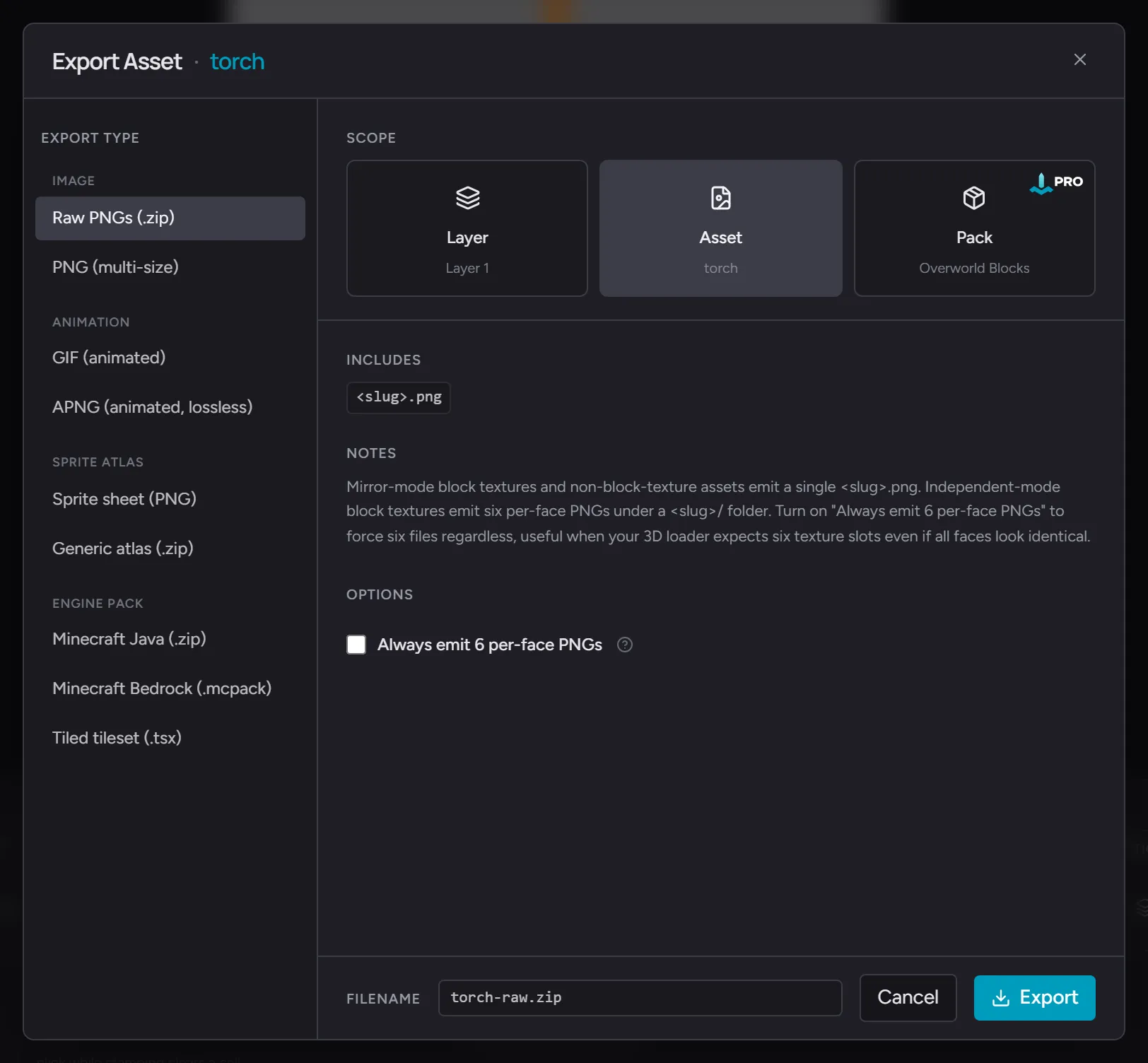
The engine sidebar
Section titled “The engine sidebar”The dialog’s left rail lists every available engine for the current scope, grouped into four intent-based categories so you can scan past entire clusters that don’t apply to your workflow:
- Image - single-frame PNG outputs (Raw per-face, Multi-size PNG). Pick these when you want a static texture file or an upscaled marketing render.
- Animation - sharing and preview formats for animated assets (GIF, APNG). Pick these when the target is a chat app, social media, or a web embed.
- Sprite atlas - universal sprite atlases recognized by Phaser, Babylon, Three.js, Godot, and Unity (Sprite sheet, Generic atlas). Pick these when the target is a 2D game engine that expects a packed atlas plus a JSON manifest.
- Engine pack - domain-specific resource bundles for a named engine (Minecraft Java, Minecraft Bedrock, Tiled tileset). Pick these when you’re publishing for one specific target.
Each category has a header above its engines, and within a category the order matches the dialog’s internal registry. New engines added in future releases slot into the right group automatically.
Three cards (Layer / Asset / Pack), each adapting to whatever’s multi-selected in the editor:
- Layer - a single layer from the active asset, or your
multi-selection of layers as a bundle.
- One layer selected → a single PNG
<asset>-<layer>.png. Free. - Two or more layers selected (Shift-click in the layers panel)
→ a
.zipof single-layer PNGs with01-,02-prefixes preserving top-first display order. Free. - Disabled when no asset is open in the editor.
- One layer selected → a single PNG
- Asset - the active asset, or your multi-selection of assets
as a bundle.
- One asset → the engine’s normal single-asset output. Free.
- Two or more assets (Shift / Ctrl-click in the assets panel)
→ the engine bundles just those assets into a
.zip. The card switches to Assets · N assets and shows a PRO badge. Pro feature.
- Pack - every asset in the pack. Pro feature.
The dialog seeds the scope based on where you opened it from:
- Ctrl/Cmd + E or File → Export… seeds to “Asset” (or Layer if you have layers multi-selected and that’s your most recent action).
- The Export asset… action in the assets panel kebab seeds to “Asset”. With multiple asset rows selected, the kebab label flips to Export N assets… and the dialog opens in the multi-asset bulk variant.
- The Export pack action in the pack switcher seeds to “Pack”.
You can change the scope inside the dialog before exporting, with one exception: when the dialog opens from a kebab the scope locks to the kebab’s intent (the card still shows the active state, but the others are uneditable for the duration of the dialog).
Engine
Section titled “Engine”The engine list is filtered to what makes sense for the active scope and the asset / pack kind:
- Block-texture pack scope → Minecraft Java, Minecraft Bedrock, generic atlas, raw per-face PNGs
- Block-texture asset scope (single) → multi-size PNG, raw per-face PNGs
- Asset scope with multi-selection → only engines that can bundle (raw, multi-size, generic atlas, sprite-sheet, Minecraft Java, Minecraft Bedrock, Tiled). Single-asset-only engines (GIF, APNG) dim because they can’t pack N assets into one output.
- Tilemap pack scope → Tiled tilemap, generic atlas
- Sprite or icon-set pack scope → generic atlas, multi-size PNG
- Layer scope → raw PNG only. Multi-layer is a fixed
.zip- of-PNGs format and doesn’t depend on the engine.
If the pack has a target engine set (you picked one when creating the pack, or set it later), that engine is the default.
The defaults pipeline
Section titled “The defaults pipeline”The dialog seeds engine choice in priority order:
- The pack’s
targetEngine(if set) - The user’s last-used engine for this scope
- The first compatible engine in the list
So once you’ve exported a Minecraft Java pack as Java once, the next Ctrl/Cmd + E inside that pack pre-selects Java and your last-used options.
Engine-specific options
Section titled “Engine-specific options”Every engine has its own options block - version selector for Minecraft, naming convention for raw, output size for multi-size, etc. Last-used options for each engine are remembered separately.
For animation-capable engines (GIF, APNG, sprite-sheet), a shared block of animation controls sits alongside the engine-specific options when the active asset has more than one frame:
- Frames - all frames, active tag, or a custom
from / torange. - FPS override - flatten every frame to a uniform rate for this export, or leave empty to use the per-frame durations from the timeline.
- Loop count - infinite or a fixed integer (GIF and APNG).
GIF and APNG also surface a dedicated Export per tag button
that emits one file per tag, bundled into a single .zip.
Sprite sheet handles tags inside its manifest instead.
See Animation, frames, and cels for how frame durations and tags are authored in the editor.
See the per-engine pages, listed in the same order the Export modal’s sidebar renders them:
- Raw per-face PNGs
- Multi-size PNG
- GIF (animated)
- APNG (animated, lossless)
- Sprite sheet (PNG)
- Generic atlas
- Minecraft Java
- Minecraft Bedrock
- Tiled tilemap
- Per-layer export (layers-panel kebab shortcut)
Output
Section titled “Output”Engines that produce a single PNG download as <asset-slug>.png
or <asset-slug>-<size>.png. Engines that produce a bundle (any
of the Minecraft engines, Tiled, generic atlas) download a .zip
named after the pack slug.
The zip bundle’s structure matches the engine’s expectations - drop a Minecraft Java zip into the resourcepacks folder and it loads. No post-export rearranging.
Free vs Pro
Section titled “Free vs Pro”Free tier:
- Layer scope, single or bulk (one PNG, or a
.zipof single- layer PNGs). - Asset scope, single asset, in any engine.
Pro tier:
- Asset scope with two or more assets selected (the bundle is the Pro workflow, not the engine breadth).
- Pack scope (whole-pack bundle).
The dialog surfaces an inline upgrade affordance whenever a free user lands on a gated scope - the card shows a PRO badge and the Export button reads Upgrade to Export.