

Assets panel
The assets panel (also called the asset switcher) is the narrow column between the tool rail and the canvas. It lists every asset in the active pack as a stacked thumbnail with the asset name underneath.
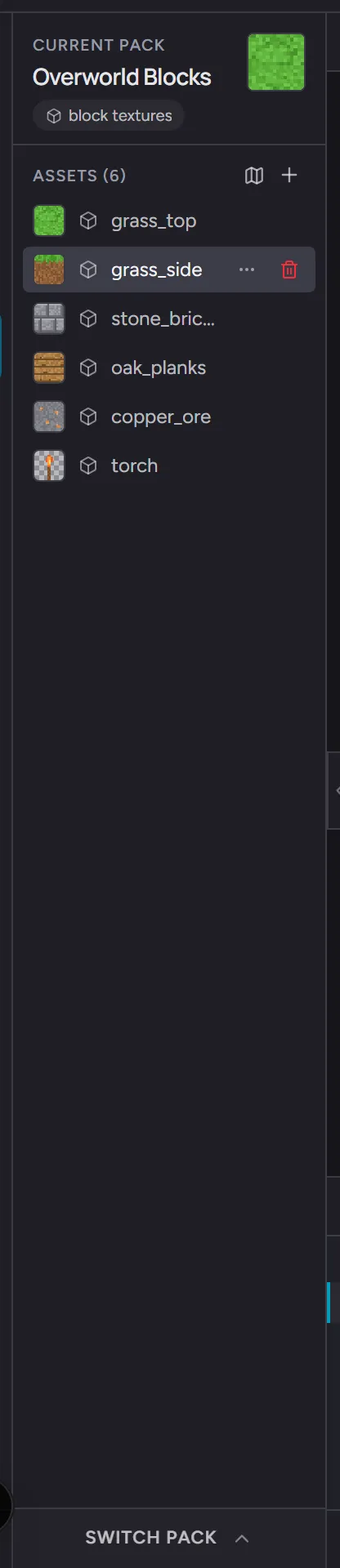
The header at the top shows the pack name and acts as the pack switcher - click it to jump to a different pack without leaving the editor.
Switching assets
Section titled “Switching assets”Click any thumbnail to switch the editor’s active asset. The URL updates, the canvas reloads with the new asset’s layers, and the 3D preview re-skins. There’s no loading state - switches are instant because every asset’s layers live in memory once the pack hydrates.
Adding and removing
Section titled “Adding and removing”- The trailing
+ New assetbutton at the bottom opens the New Asset modal - name plus Width × Height inputs, prefilled with the pack’s default canvas size. The same size rules apply as in the New Pack modal (8 to 512 px per axis; block-texture packs lock height to width; non-square is fine for sprite / tile / UI packs). - The map button next to it (shown in packs with a tile workflow) opens the New Tilemap modal instead - size in cells plus a cell size. See Tilemaps.
- The trash icon on a row removes the asset (after confirm)
Deleteremoves the selected assets when your cursor is over the panel
After delete, the active asset falls back to the row immediately above the lowest deleted index - same convention as the layers panel.
Free-tier packs cap at 8 assets. Hitting the cap surfaces an inline upgrade affordance.
Multi-select
Section titled “Multi-select”- Click selects a single asset
Cmd/Ctrl + Clicktoggles in / out of the multi-selectionShift + Clickrange-selects- Drag the multi-selection to reorder all selected rows as one block
The active asset (the one currently in the editor) keeps a brand teal highlight; the multi-selection uses a neutral highlight so the two states are distinguishable.
Grouped by type
Section titled “Grouped by type”When a pack holds more than one asset type, the list groups by type with a small header per section - Maps first, so your tilemaps never drown in a long tile list, then the other types. A pack with a single type stays a flat list with no headers.
Generated terrains and tilesets (imported or hand-drawn) additionally fold their tiles under a collapsible header each - click it to expand, and opening any member expands it automatically. A 100-tile sheet stays one row until you need it.
Reordering
Section titled “Reordering”Drag any row by its handle to a new position. The order in this panel is the order assets appear in exports. When the list is grouped, rows reorder within their own type group.
Kebab ⋯ actions
Section titled “Kebab ⋯ actions”Each row’s kebab menu has:
- Convert to - flip the asset between block-texture, sprite, tile, or ui-element. The current type is shown at the top of the menu; the conversions below list only the three other options.
- Export asset… - opens the Export dialog scoped to this
asset (or Export N assets… when multiple asset rows are
selected, which scopes the dialog to the multi-asset bundle
- a Pro feature).
- Export layer as PNG - downloads the asset’s single layer
as a PNG (or Export N layers when the asset has multiple
layers, as a
.zip). Always free. - Set as pack thumbnail - uses this asset’s thumbnail as the pack’s cover image in the pack browser. Flips to a checkmarked Pack thumbnail entry when this row is already the cover.
- Derive slab and stairs (Pro) - for cube block-textures only. Creates sibling slab + stair assets that share the source’s pixels, with the right geometry hint for Minecraft Java export.
- Delete asset - removes the row (or Delete N assets when multiple are selected). Disabled when it would leave the pack with zero assets.
Rename isn’t in the kebab - double-click the asset name to start an inline rename instead.
Type icons
Section titled “Type icons”Each asset row shows a small icon for its type so you can scan the list and tell sprites from block textures at a glance.
Hidden on narrow viewports
Section titled “Hidden on narrow viewports”The panel hides on narrow viewports to preserve canvas real estate. Use the pack switcher’s dropdown for asset switching on those layouts.