

Palette section
The Palette section sits between Color and Layers in the right panel. It manages the pack-level palette - the set of colors shared across every asset in the active pack.
If no pack is active (you’re on the pack browser), the Palette section is hidden entirely.
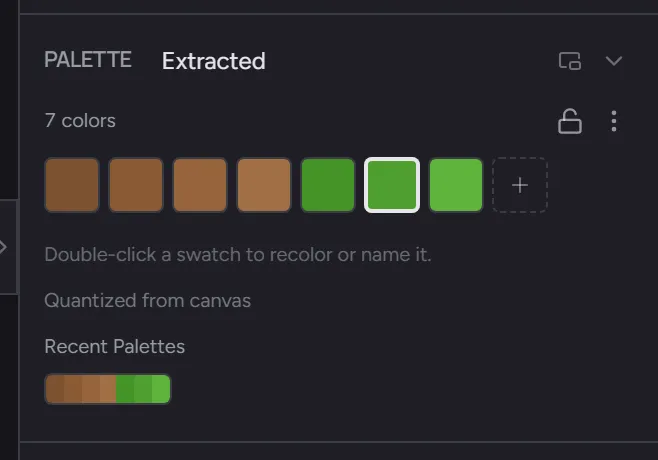
The header
Section titled “The header”The header row shows, left to right:
- PALETTE label
- Palette name - double-click to rename
- Color count - how many entries the palette has
- Lock toggle - see below
- Generator menu (
⋯) - Collapse chevron - fold the section away
The swatch grid
Section titled “The swatch grid”Below the header, the colors of the palette appear as small square swatches in a grid that fills the panel width (so the column count adapts when you resize or pop the section out into a floating window). Each swatch:
- Click to set it as the foreground brush color
- Alt + click to remove the swatch from the palette
- Right-click also removes
- Hover shows the hex value as a tooltip
The swatch matching your current brush color gets an inset ring so you can see at a glance which palette entry is active.
The trailing + button adds your current brush color as a new
palette entry.
The generator menu (⋯)
Section titled “The generator menu (⋯)”Entry points for building or replacing the palette:
- Palette Manager. Open the Palette Manager - a larger workspace for building, organizing, and auto-generating your reusable palette library.
- New Palette. Start a fresh, empty palette on the active pack.
- Extract from Canvas. Collect every distinct color already
painted across the pack into a fresh palette. No quantization
- one swatch per unique color.
- Quantize from Canvas. Median-cut down the painted pixels in the active asset to a target color count (default 16). Useful when an imported image needs to fit a small palette.
- Generate from Brush Color. Build an HSL ramp seeded by your current brush color (default 8 colors).
- Load preset. Pico-8, Game Boy DMG, Endesga 32, Apollo, or the Minecraft palette.
- From library. Any palette saved to your library appears here once you’ve saved at least one.
- Save Palette to Library. Stores the current palette for reuse across packs.
- Clear Palette. Removes every swatch.
The lock workflow
Section titled “The lock workflow”Click the padlock to lock the palette. While locked, every stroke commits the nearest palette color instead of the literal brush color - even if your foreground swatch is a color that isn’t in the palette.
The first time you lock a non-empty palette, every existing pixel in every asset of the pack snaps to the nearest palette color in one undoable step. Removing a swatch also re-quantizes everything that was previously that color.
For larger packs, the re-quantize runs in a Web Worker so the editor stays responsive during the snap.
See Palettes and the lock workflow for the full conceptual model.
Source attribution
Section titled “Source attribution”Below the swatch grid is a small line stating where the current palette came from - “From canvas (16 colors, quantize)”, “From preset: pico-8”, “Generated from #7df500 seed”, etc. Useful when returning to a pack after a while and you want to remember what palette you were working with.
Recent palettes
Section titled “Recent palettes”The strip at the bottom shows recent palettes you’ve used in any pack - click one to apply it to the current pack. Up to eight recent entries; oldest are evicted as new ones land.
Related
Section titled “Related”- Palettes and the lock workflow
- Palette Manager - the library workspace + scheme generator
- Color section
- Customizing the Studio panel - show/hide, resize, or detach the Palette section into a floating window