

Tilemaps
A tilemap is an asset that arranges your pack’s tiles on a
grid. Each cell remembers which tile it shows - not just the
pixels - so when you edit a tile, every map that uses it updates
on the spot, and maps export as real
Tiled .tmx map files instead of
flat images.
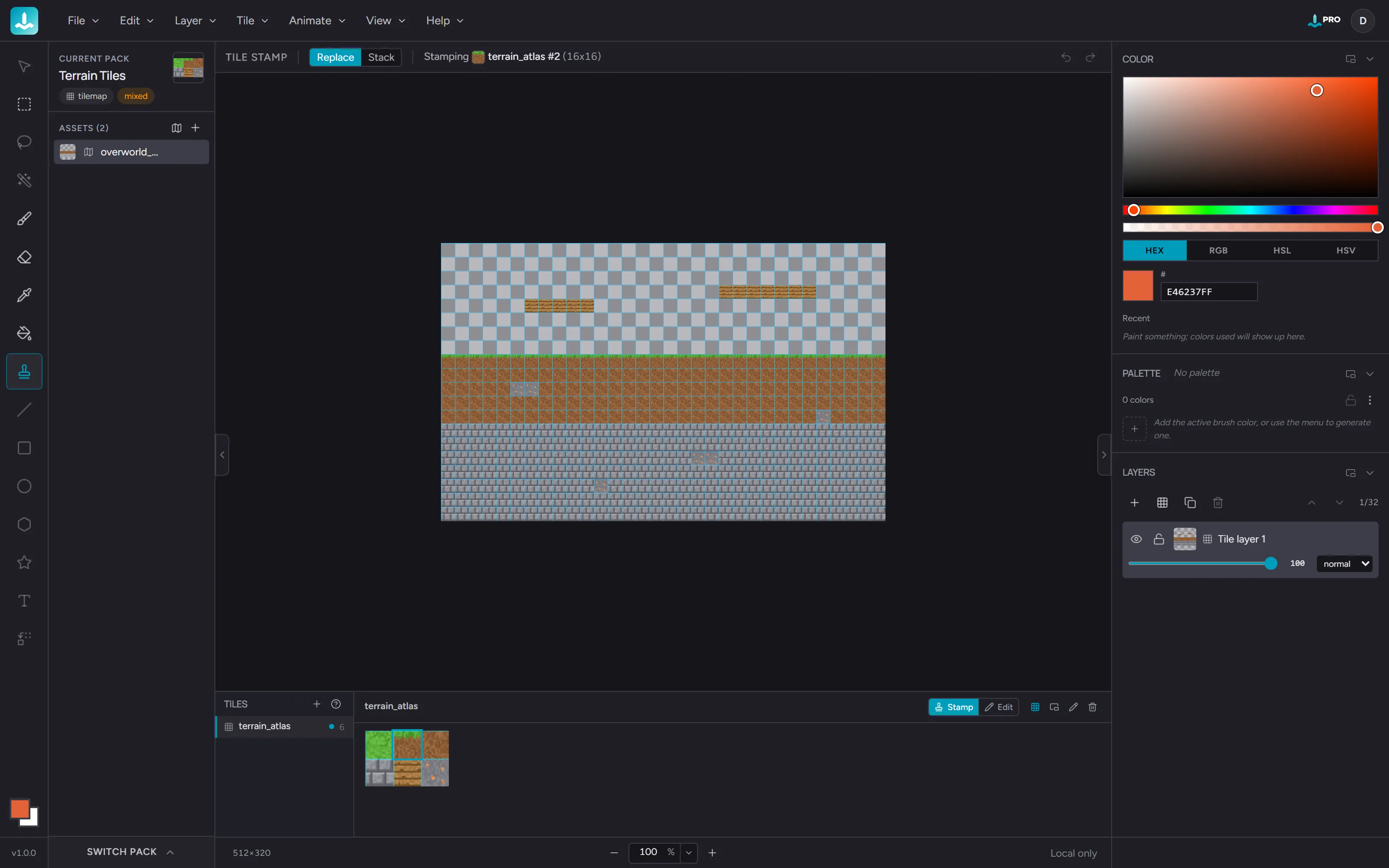
Tilemaps vs the tile stamp
Section titled “Tilemaps vs the tile stamp”There are two ways to lay tiles in Hexcalibur:
- The tile stamp paints a tile’s pixels onto a regular canvas. Quick and simple - good for mockups and for flattening tiles into one image - but the canvas forgets which tile went where.
- A tilemap stores the arrangement itself. Cells stay linked to their tiles, editing a tile updates the map live, and the arrangement exports as tile data a map editor can read.
If you are building a level or a map you intend to keep working on, use a tilemap.
Creating a map
Section titled “Creating a map”Pick Tile → New Tilemap… in the top bar (the same dialog also opens from the map button in the assets panel header and the new-map icon in the Tile Shelf’s header). Pick the map’s size in cells - columns and rows - and the cell size in pixels, which is pre-filled from your tiles’ size. A 16x12 map of 16-pixel cells gives you a 256x192 canvas.
Maps can be up to 1024 pixels per side - double the regular canvas limit, since maps are sized in whole cells. Past 512 the dialog notes that very large maps can feel slower on modest hardware; for bigger worlds, build rooms as separate maps and stitch them in your map editor.
Maps get their own Maps section at the top of the assets panel, so they never drown in a long tile list.
Tile layers and paint layers
Section titled “Tile layers and paint layers”A map’s layers come in two kinds:
- Tile layers hold the arrangement - every cell is either empty or one of your tiles. They are marked with a small grid icon in the layers panel.
- Paint layers are normal layers. Brush, shapes, selections - everything works exactly as it does on any other asset. Use them for freehand decoration over the tiles.
The layers panel shows Add Tile Layer and Add Pixel Layer buttons on a map. Every map keeps at least one tile layer (it is what makes it a map), and tile layers don’t merge with other layers - their cells would stop being editable as tiles.
Placing tiles
Section titled “Placing tiles”Click a tile in the Tile Shelf. On a map this arms the stamp, switches to the Tile Stamp tool, and activates the map’s tile layer, so you are immediately placing real tile references. With a tile layer active:
- Tile Stamp or Brush - click or drag to place the armed tile into each cell you cross. Right-click clears cells.
- Eraser - clears cells.
- Eyedropper (or Alt+click with any placing tool) - picks the tile under the cursor as your new stamp.
- Fill - fills the connected region of matching cells with the armed tile. Right-click fills the region with empty.
- Marquee - selects whole cells (it snaps to the cell grid). Delete clears the selected cells.
Tools that need pixel precision - lasso, magic wand, move, text, and the shape tools - are dimmed while a tile layer is active. Switch to a paint layer to use them.
A map has one cell size, so only tiles matching it can be placed. A mismatched tile shows no placement ghost and clicks do nothing.
Two stamps go beyond one tile at a time:
- Blocks - drag across an imported sheet’s atlas in the shelf to arm a multi-tile block (a tree, a house); the whole block places per click. See Stamping whole blocks.
- Terrain - tiles from a terrain (generated or hand-drawn) autotile: every cell picks the right edge or corner piece to match its neighbors as you drag, with an Autotile toggle in the tool options bar to switch to exact placement.
Replace or Stack
Section titled “Replace or Stack”The tool options bar’s blend toggle decides what happens when stamps overlap on a tile layer:
- Replace (default) - an overlapping stamp replaces the cells under it. Every cell is exactly the last tile placed.
- Stack - the overlap goes to a tile layer above the active one, created automatically when needed. Stamp a row of trees with half-cell spacing, or drop a prop onto ground that is already laid, and the pieces overlap cleanly while every cell still holds a single tile.
Replacing tiles across the map
Section titled “Replacing tiles across the map”Swapped in a new version of a tile as a separate asset - final art over a placeholder, a re-imported sheet, a seasonal variant? You don’t have to restamp every cell:
- Right-click the tile in the Tile Shelf - works from any tool. Arm the replacement first (left-click it), then right-click the tile to swap out and choose Replace all “Grass” with “Snow” - every cell on the active tile layer holding that tile switches over. Clear all “Grass” removes every instance instead. A short notice confirms how many cells changed.
- Right-click a map cell (with a selection tool or Move in hand) for the same two actions on the cell’s tile.
- The Fill tool can do it by gesture: on a tile layer its options bar gains a Contiguous toggle. On (the default), Fill works as always - it fills the connected run of matching cells. Off, one click replaces every matching cell on the layer, and right-click clears them.
- Retheme whole terrain: right-click a cell painted with a terrain and choose Replace “Grass” set with “Snow”. Terrains of the same shape swap, whether generated or hand-drawn. Every piece swaps for the matching piece of the other terrain - edges, corners, and fills all stay coherent - across the whole map.
Each action is a single undo. Replace and Clear work on the active tile layer, so props stacked on other layers stay put; the set swap re-themes every unlocked tile layer at once.
Edit a tile, update the map
Section titled “Edit a tile, update the map”Maps update live. Paint a stroke on a tile, undo something, toggle one of its layers, resize it - every map cell using that tile redraws the moment the change lands.
Double-click a cell to jump straight into the tile it shows. Edit it, watch the map take the changes, then double-click your way to the next one - the fastest way to polish a map’s tiles in context.
Deleting a tile empties its cells on every map, but the cells remember what they held - undo the delete and they fill back in.
Tile numbers on maps
Section titled “Tile numbers on maps”With View -> Tile Numbers on, every placed cell shows its tile’s number, no matter which layer is active - the same numbers badge the tiles in the Tile Shelf. A cell showing ? points at a tile that is no longer in the pack; clear or replace it (or undo the deletion) to fix it.
Painting on a map
Section titled “Painting on a map”Add a paint layer and decorate right over the live tiles - the normal way to design a new tile in context. By default, strokes on a map’s paint layer clip to the cell they start in, so your linework stays inside the tile you are designing. The Clip to cell toggle in the tool options bar turns this off when you want to paint across cell boundaries. (The tile stamp ignores the clip - stamping across cells is its whole point.)
Turn painted pixels into a tile
Section titled “Turn painted pixels into a tile”Once a painted cell looks right, promote it:
- Right-click a cell (with a selection tool or Move active) and choose Create tile from this cell. The cell’s visible pixels - tiles and paint together - become a new tile asset, instantly available in the Tile Shelf and armed as your stamp.
- Create tile + replace cell goes one step further: the cell switches to referencing the new tile, and the strokes you painted move into it, so the map stays clean.
- The same two actions live on the selection right-click menu as Create tile from selection when you have a marquee - on any asset, not just maps.
Exporting maps
Section titled “Exporting maps”The Tiled export (Pro, pack
scope) writes one .tmx per map alongside the pack’s tileset.
Tile layers export as real tile data; visible paint layers ride
along as image layers - hide a layer before exporting to keep it
out. Exporting a single map bundles the pack’s tileset with it so
the file works on its own.
A map also exports as a flat PNG like any other asset, using the composited image you see in the editor.
Good to know
Section titled “Good to know”- Maps save, sync to the cloud (Pro), and travel inside
.hexcpack files like any other asset, arrangement included. A map counts as one asset toward the free plan’s per-pack cap. - Maps never appear as stamps in the Tile Shelf - a map is a place tiles go, not a tile.
- Maps are single-image assets; the animation timeline doesn’t apply to them.