

Color section
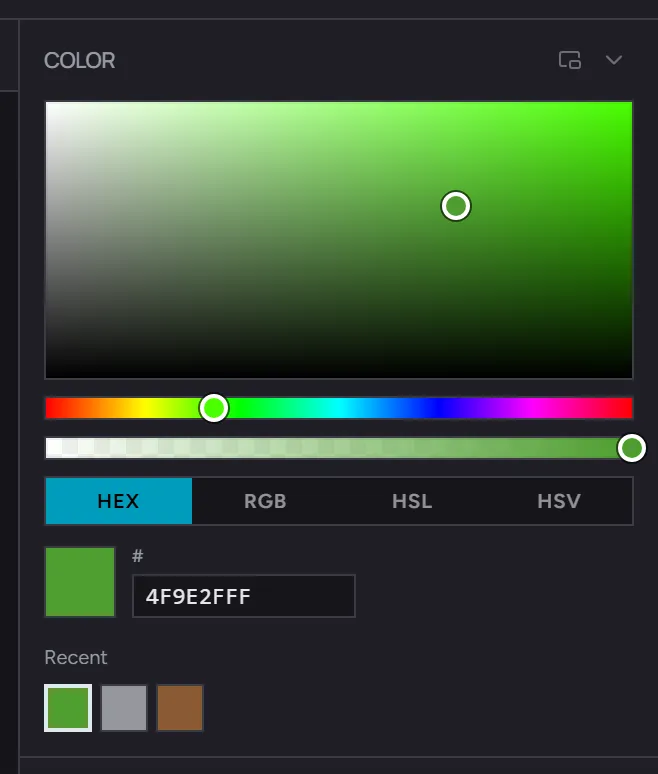
The Color section is the top of the editor’s Studio panel. It holds the foreground and background color swatches, the color picker, and the hex input.
Foreground and background
Section titled “Foreground and background”Two overlapping square swatches sit at the bottom of the tool rail. The foreground (front) is what left-click strokes paint with - brush, fill, line, rectangle, circle, polygon, and star. The background (behind) paints when you right-click with any of those tools, so two-color work never needs a swap or a trip to the picker.
- Click either swatch to open its color picker.
- Right-click either swatch to swap foreground and background.
- With the eyedropper, left-click samples into the foreground and right-click samples into the background.
The eraser ignores both swatches - it always clears to transparent, on either button.
The color picker
Section titled “The color picker”Click the foreground swatch (or the picker’s chevron) to open the HSV picker overlay. You’ll see:
- A saturation/value square - drag to pick brightness and chroma for the current hue
- A hue strip below it - drag to change the hue
- A hex input - type a 6-digit hex code (with or without leading
#) for an exact color - An alpha strip if your asset supports it
Changes commit immediately to the foreground. Clicking outside the picker closes it.
Hex input
Section titled “Hex input”The hex input under the picker accepts:
- 6-digit hex with or without
#(e.g.#7df500or7df500) - 3-digit hex shorthand (e.g.
7dfbecomes77ddff)
Invalid input is ignored - the previous color stays selected.
Eyedropper integration
Section titled “Eyedropper integration”You don’t need to open the Color section to sample a pixel:
- Press
Ito switch to the eyedropper - Hold
Altwhile painting for a one-shot sample without switching tools
Either way, the picked color becomes the new foreground and the swatch updates immediately.
Recent colors
Section titled “Recent colors”The strip beneath the swatches shows the last colors you used, across the whole editor session. Click any to set it as the foreground. Useful when you’ve been bouncing between three or four hues in a row.
Related
Section titled “Related”- Tool rail - eyedropper details
- Palette section - for saving colors into a pack-level palette
- Customizing the Studio panel - show/hide, resize, or detach the Color section into a floating window